You can connect Claude to your CRM in about five minutes, and after that you just ask. "Which deals close this month?" "Add a follow-up task for Friday." Claude looks it up or does it for you, in your real customer data. No copying and pasting between tabs, no exporting spreadsheets.
Friendly8 is a CRM you can connect to Claude: once connected, Claude can look up your customers, deals and tasks and update them for you. This guide walks you through every click, with screenshots.
What you get
Once Claude is connected to Friendly8, you talk to your CRM the way you'd talk to an assistant. A few things you can ask:
- "Which deals are closing this month and what are they worth?" Claude reads your open deals and gives you the list and the total.
- "Add a follow-up task for Jan de Vries for Friday: send the revised quote." Claude creates the task, linked to Jan, with the right due date.
- "Summarise everything we did for Bakkerij Smit this year." Claude pulls together the deals, quotes, invoices and notes on that customer.
It works on your organisations, contacts, deals, quotes, tasks, invoices and posts. Claude asks your permission before it uses Friendly8, so nothing changes without you seeing it.
What you need
- A Friendly8 account. The Free plan works. You can start free at friendly8.com.
- A Claude account. Custom connectors work on every Claude plan, including Free (Free allows one custom connector).
The only thing you'll paste into Claude is this address:
Copy it exactly, without a slash at the end.
Step by step: connect Claude to Friendly8
Step 1: Open Claude's settings
Go to claude.ai/settings. You can also get there from your name or initials at the bottom left of Claude, then Settings.
Step 2: Go to Connectors
In the menu on the left, close to the bottom, click Connectors. You'll see the connectors you already have, if any.
Step 3: Click Add
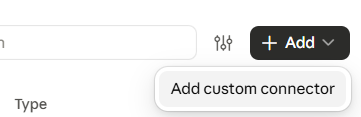
At the top right, click Add, then Add custom connector.
Step 4: Fill in the name and address
A dialog opens. Fill in:
- Name: Friendly8
- Remote MCP server URL: https://api.friendly8.com/mcp
Step 5: Click Continue
Click Continue. Claude now checks the address and works out how to sign in to Friendly8 by itself.
Step 6: Check the settings and click Add
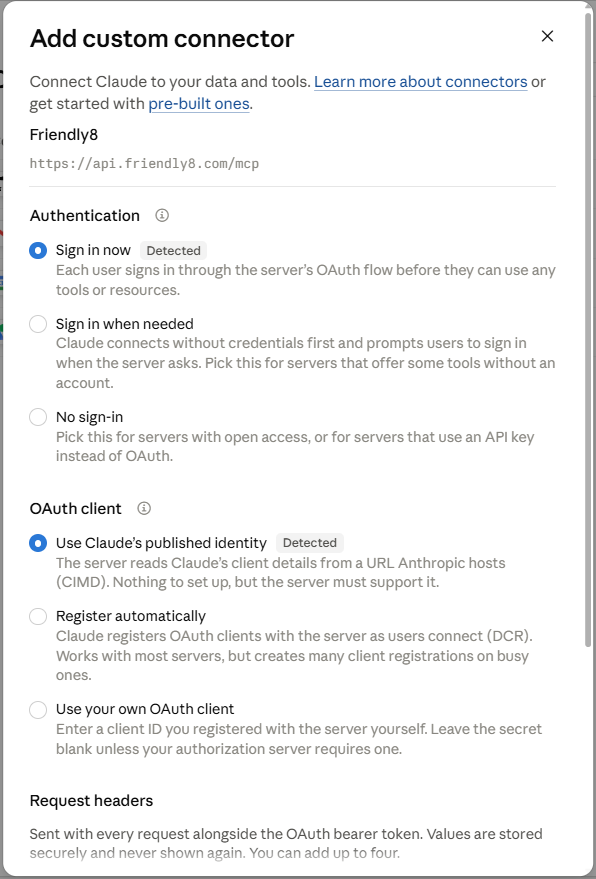
Claude shows what it found. You don't need to change anything:
- Authentication: Sign in now, marked Detected. You'll sign in to Friendly8 once, in the next step.
- OAuth client: Use Claude's published identity, also marked Detected. Friendly8 recognises Claude automatically, so there's nothing to set up.
- Request headers: leave these empty.
Read it through, then scroll to the bottom and click Add.
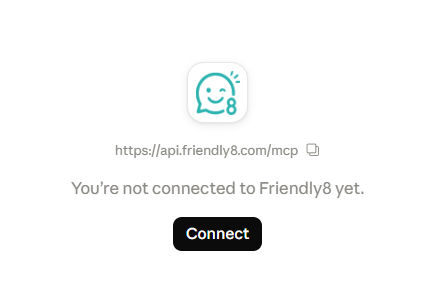
If Claude then says you're not connected to Friendly8 yet, click Connect.
Step 7: Approve in Friendly8
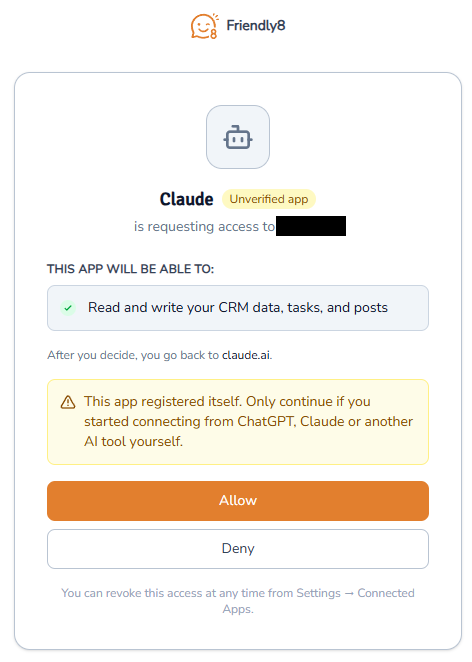
Your browser now opens app.friendly8.com. If you're not signed in yet, sign in the way you normally do: with your email and password, or with Google, Microsoft or LinkedIn. Then Friendly8 shows its own approval screen, so you can see exactly what you're agreeing to:
- Which app is asking: Claude, with an Unverified app label. That's normal: it means Claude introduced itself to Friendly8 a moment ago, which is how these connections work. Only continue if you started this connection yourself just now.
- Which Friendly8 business it gets access to. If you work in more than one business, switch to the right one first.
- What Claude will be able to do, for example read and write your CRM data, tasks and posts.
- Where you go back to afterwards: claude.ai.
Happy with all of it? Click Allow. Something looks off? Click Deny, and nothing is connected.
Step 8: Ask your first question
You land back in Claude, with Friendly8 in your list of connectors. Start a new chat, check that Friendly8 is switched on (in the + or tools menu next to the message box), and ask something:
Which deals are closing this month and what are they worth?
Claude asks permission to use Friendly8, reads your deals and answers with real names and amounts.
Now ask it to change something:
Add a follow-up task for Jan de Vries for Friday: send the revised quote.
Claude shows you what it's about to do. Allow it, and the task appears in Friendly8 straight away, on Jan's record and in your task list.
That's it. Your CRM now has an assistant.
What Claude can and can't do in Friendly8
- It can read and change organisations, contacts, deals, quotes, tasks, invoices and posts.
- It can't delete anything. Friendly8 refuses deletes from external AI tools, so a misunderstood request can never wipe a customer.
- It only sees the business you connected. Your other Friendly8 businesses stay out of it.
- Your team permissions still apply. Someone who is a viewer in Friendly8 stays a viewer in Claude.
Stay in control: disconnect any time
In Friendly8, go to Settings → Connected Apps. You'll see every AI tool you've connected and when it was last used. Click Revoke next to Claude and its access stops immediately. You can also remove the connector in Claude under Settings → Connectors. Want it back later? Just connect again.
If something doesn't work
- "Couldn't reach the server" or the connector won't add: check the address is exactly https://api.friendly8.com/mcp, with no slash at the end.
- You land on the Friendly8 dashboard instead of the Allow page: go back to Claude and click Connect again. The Allow page is only valid for five minutes.
- Claude doesn't use Friendly8: check that Friendly8 is switched on for this chat, or mention it by name: "Look in Friendly8 for..."
- On a Claude Team or Enterprise plan: an owner adds the connector for the organisation first; after that, each person clicks Connect and approves it for themselves.
It works with ChatGPT too
Prefer ChatGPT? The same address works there. Follow How to Connect ChatGPT to Your CRM in 5 Minutes.
Frequently asked questions
Can Claude update my CRM?
Yes. Once you've connected Claude to Friendly8, it can create and update organisations, contacts, deals, quotes, tasks, invoices and posts. It asks your permission before it uses Friendly8, and it can never delete anything.
Is it safe to connect Claude to my customer data?
You stay in control at every step. Friendly8 shows you exactly what Claude will be able to do before you click Allow, Claude only sees the one business you connected, your team permissions still apply, deletes are always blocked, and you can revoke access in one click under Settings → Connected Apps.
Does Claude see all my data?
No. It only sees the Friendly8 business account you picked on the Allow page, and only what your own user role in Friendly8 is allowed to see. Claude looks things up when you ask a question; it doesn't copy your whole CRM.
Which Claude plan do I need?
Any. Custom connectors work on Claude Free, Pro, Max, Team and Enterprise. On the Free plan you can add one custom connector. On the Friendly8 side, the Free plan is enough.
Does it work in the Claude desktop and mobile apps?
Yes. Once you've added Friendly8 as a connector on claude.ai, you can use it in the Claude apps with the same account.
Can I disconnect it?
Yes, any time. In Friendly8, go to Settings → Connected Apps and click Revoke next to Claude. Access stops right away.
Your CRM, now with an assistant
Running a small business means a hundred small admin jobs a week. Connecting Claude to Friendly8 takes five minutes and hands a lot of them to an assistant that knows your customers, without giving up control of your data.
Try it with your own customers
Start on the Friendly8 Free plan, connect Claude, and ask your first question today.
Already have an account? Sign in at app.friendly8.com and connect Claude now.